
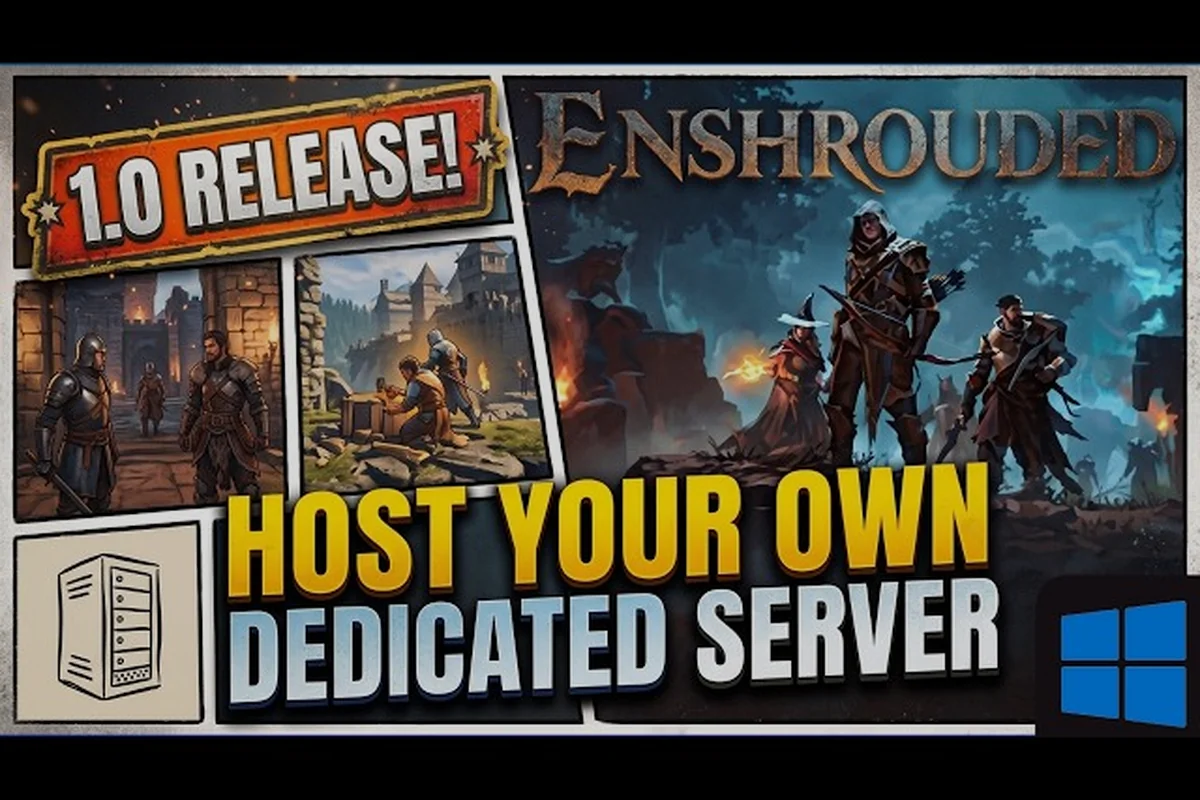
Enshrouded's co-op layer is not a bolt-on — the Flameborn's shared Flame Altar determines everything from base permissions to how far each player can roam before the Shroud drains them. Hosting splits into two paths: a quick in-game session capped at 16 players where the host's world save is the only persistent state, or a dedicated server setup that keeps the world running while the host is offline. Before you invite anyone, decide which route fits your group, because the choice affects server settings, uptime, and how Enshrouded crossplay support behaves across Steam, Epic, and console clients.
What Co-op Adds to the Base Game
Enshrouded is a survival action RPG from Keen Games where you play as a Flameborn rebuilding the lost kingdom of Embervale. According to the the official Steam page for Enshrouded, the game supports solo play and co-op for up to 16 players, and that number is the single most important figure to remember when you plan a session. Unlike many survival games that cap lobbies at four, this one lets a full guild spread across the map at once.
The world itself is persistent and shared. When you host, your save file becomes the world everyone plays in, which means bases, resources, rescued NPCs, and terraformed terrain all live in one place. If you want to understand how that shared state behaves before you invite anyone, the online co-op mechanics breakdown explains base sharing and progression in detail.
There are two ways to run a session, and picking the right one up front saves a lot of headaches: hosting from your own machine keeps the world live only while you are online, whereas a dedicated server runs the world 24/7 so friends can play even when you are offline. The trade-off is commitment — a self-hosted world suits a small group that plays on the same schedule, while a dedicated server fits a larger 16-player community spread across time zones. Decide this before anyone builds a base, since migrating an existing save to a dedicated server later means reconfiguring the world rather than starting fresh.
-
Host from your own machine — you launch the game, open your world, and friends join while you are online.
-
Dedicated server — a separate process runs the world 24/7 so anyone can play even when you are offline.
-
Join a friend's world — the simplest path, requiring only that the host is online and has shared access.
-
Adventure sharing — a separate feature for community-made worlds, not the same as standard co-op.
A few mechanics change once more players are involved. Enemy health scales with party size, so a four-player group faces tougher foes than a solo Flameborn. The Shroud timer still applies to everyone, and hunger and thirst only affect combat efficiency rather than draining you to death. These details matter because they shape how you split roles across a large group.
Co-op Limits at a Glance
| Feature | Solo | Co-op (up to 16) |
|---|---|---|
| Max players | 1 | 16 |
| Enemy health scaling | Base | Scales with party size |
| Shared base and storage | N/A | Yes, one shared world |
| Shroud timer | Applies | Applies to all players |
| Hunger and thirst | Combat efficiency only | Combat efficiency only |
| Host must be online | N/A | Yes, unless dedicated server |
The table above is the quick reference most players want, but two rows deserve a closer look before you commit to a session. Enemy health scaling means a 16-player party faces noticeably tankier foes than a solo run, so bringing Frost damage, a Tank spec, and upgraded weapons matters more than raw headcount. The Shroud timer row is the one that catches new groups off guard: it applies to every player independently, so a friend who wanders into the fog without a Shroud Root nearby will die while the host is still safe at base. The rest of this guide digs into the practical steps for hosting, joining, and configuring.
How to Play Enshrouded With Friends
Getting a group into the same world is straightforward once you know the flow. The host controls access, and everyone else joins through a friend list or a direct invite. Before you start, make sure every player has completed the tutorial and reached the point where the world opens up, because you cannot join a session from the character-creation screen.
Here is the standard sequence for a self-hosted session: the host loads the world from the main menu and toggles "Allow Friends" in the multiplayer tab, which flips the session from private to joinable without requiring a dedicated server. Friends then join either by selecting the host's name from their in-game friend list or by accepting a direct Steam invite, and each player must be past the tutorial's Shroud-tutorial trigger before the join option appears at all. Once everyone is in, the party list in the top-right corner confirms each connection; if a name is missing, the usual culprits are a version mismatch after a patch or the host's session visibility reverting to private after a crash.
-
Launch the game and load your world as the host, then confirm you are past the intro.
-
Open the social or multiplayer menu and set your world to allow friends.
-
Invite players from your friend list, or share the world so they can join directly.
-
Wait for each player to appear in the party list before heading into the Shroud together.
-
Assign roles — one builder, one gatherer, one scout — so a large group does not overlap.
If you are brand new to the game and still learning the basics, the beginner survival guide covers the first-hour essentials that make co-op far less chaotic. Knowing how to craft a glider and grappling hook before you invite friends means your group can actually traverse the map together instead of waiting on one slow player.
A common friction point is that the host's world is the only world. If you built a base in your own save and your friend built one in theirs, those are two separate worlds. You cannot merge them. Decide early whose save becomes the group save, and stick with it, because switching later means abandoning progress.
Who Should Host?
| Scenario | Best Option | Why |
|---|---|---|
| Casual weekend group | Host from your machine | Zero setup, host plays too |
| Group across time zones | Dedicated server | World stays online 24/7 |
| One reliable player with good internet | That player hosts | Stable connection for all |
| Large 16-player guild | Dedicated server | Handles concurrent logins |
Enshrouded Dedicated Server Setup
A dedicated server is the right call when your group plays on different schedules or you want the world to keep running while you sleep. The setup process is more involved than a quick host session, but it pays off in stability and uptime. The general workflow is the same whether you rent a server or run one on your own hardware.
The core steps look like this: pick a host (rented Enshrouded game-server provider or your own machine/VPS), install the server files via the game's dedicated server tooling, then edit the server settings file to set your world name, join password, and player limit. From there you open the required network ports, launch the server process, and confirm it shows up in the server browser or through direct connect before sharing the connection details with your group.
-
Choose a host — either a rented game-server provider or your own machine or VPS.
-
Install the server files using the game's dedicated server tooling.
-
Configure the server settings file with your world name, password, and player limit.
-
Open the required network ports so outside players can connect.
-
Start the server process and confirm it appears in the server browser or via direct connect.
-
Share the connection details with your group and test a join before a big session.
The single most error-prone step is port forwarding. If players can see the server but cannot connect, the ports are almost always the culprit. Double-check that the ports you opened match the ones in your config file, and remember that a rented host usually handles this for you.
Self-Hosted vs Rented Server
| Factor | Self-Hosted | Rented |
|---|---|---|
| Cost | Hardware and electricity | Monthly fee |
| Setup effort | High | Low |
| Uptime | Depends on your machine | Usually 24/7 |
| Port forwarding | You manage it | Provider manages it |
| Best for | Tech-savvy groups | Most players |
Renting is the safer default for anyone who does not want to babysit a machine. Self-hosting is cheaper long term and gives you full control, but it only makes sense if you are comfortable with command-line tools and network configuration.
Enshrouded Server Settings Guide
Once your server is running, the settings file is where you shape the experience. A well-tuned server settings guide matters because the defaults are built for a general audience, not your specific group. Tweaking a handful of values can turn a frustrating session into a smooth one.
The settings you will touch most often fall into a few buckets: access and identity (server password, world name, and per-player permission roles), capacity (the player limit, which caps at 16 on a dedicated server), and world behavior (difficulty and enemy scaling, plus day/night cycle length). Knowing which bucket a value belongs to matters because the consequences differ. A wrong password or permission role locks friends out entirely, while a misjudged difficulty slider only makes fights feel off. Most groups end up adjusting the world-behavior values repeatedly across a playthrough, whereas access settings are usually configured once during the initial dedicated server setup and then left alone.
-
Player limit — set this to match your group size, up to the 16-player cap.
-
Password and access — a password keeps random players out of a public server.
-
World name — a clear name helps your group find the right server.
-
Difficulty and enemy scaling — adjust if your group finds combat too punishing or too easy.
-
Day and night cycle — some groups prefer longer days for building projects.
According to the Enshrouded patch notes hub, hosts and admins can now set another player's permission role at any time from the social menu, and that role is remembered when the player rejoins. This is a meaningful quality-of-life change for large servers, because you no longer have to re-promote trusted players every session. The changelog also notes that co-op players without enough permission can no longer throw fish into a base, which closes an old griefing loophole.
Permission Roles Explained
| Role | Typical Abilities | Best For |
|---|---|---|
| Host | Full control, all settings | The world owner |
| Admin | Manage players, most actions | Trusted lieutenants |
| Builder | Build and terraform | Dedicated architects |
| Standard | Play and gather | Most group members |
Setting roles early prevents the classic problem where one player accidentally dismantles a shared base. In Enshrouded, a single misplaced pickaxe swing or Altar placement can wipe out a co-op partner's storage chests and flame shrine, so lock down permissions before the first build session. Assign Admin only to people you genuinely trust with the world, since that role can kick players, alter server settings, and edit the shared Altar. Hand Builder to your dedicated architects so terraforming stays reversible, and leave everyone else on Standard — they can still gather and craft without risking the base.
How to Join a Friend's World
Joining is the easy half of the equation, but it still trips people up when the host forgets a step. The rule to remember is simple: the host must be online and must have granted access. If either condition is missing, you will not see the world in your list.
To join a friend's world, follow this order: the host must be actively loaded into the save (not sitting at the main menu), and their session must be set to allow friends or public rather than private — Enshrouded has no crossplay, so both of you also need to be on the same platform and the same game version. Once those three conditions line up, the world appears in your friend list and you can join directly.
-
Confirm the host is online and currently in the world you want to join.
-
Open your friend list in the game's social menu.
-
Select the host and choose to join their session.
-
Wait for the world to load — large saves can take a moment.
-
Check your inventory and position before wandering into the Shroud.
If the join fails, the problem is usually one of three things: the host is not actually in-game, the world is set to private, or there is a version mismatch between players. Keeping everyone on the same game version avoids the last one entirely.
Death works differently in co-op than many players expect, and getting it wrong can strand a teammate. The teammate revival and death guide explains how respawning and revives function when you are deep in the Shroud, which is exactly when you need that knowledge most.
Common Join Problems
| Symptom | Likely Cause | Fix |
|---|---|---|
| World not visible | Host offline or private | Ask host to go online and open access |
| Connection refused | Version mismatch | Update all clients to the same build |
| Kicked on join | Permission or password issue | Verify password and role |
| Long load then error | Large save or weak connection | Retry, or host restarts the world |
Enshrouded Crossplay Support
Crossplay is one of the most common questions for any multiplayer game, and Enshrouded's answer has evolved with its release timeline. The game launched in early access on PC in January 2024 and reached full release in October 2026 for PC and PlayStation 5, with an Xbox Series X|S version planned for early 2027, according to the Enshrouded Wikipedia entry. That staggered platform rollout is the key context for crossplay.
Because the platforms arrived at different times, crossplay availability depends on which versions you and your friends own. If everyone is on PC, there is no crossplay question to answer — you simply play together. If your group spans PC and PlayStation 5, you need to confirm that the current build supports cross-platform sessions before you plan around it, since platform parity is not guaranteed the moment a version ships.
A practical approach is to treat crossplay as a bonus rather than a baseline. Build your group around a shared platform when possible, and only rely on cross-platform play once you have verified it works for your specific combination of devices. This avoids the disappointment of planning a 16-player session only to discover half the group cannot connect.
Platform Availability
| Platform | Status | Crossplay Notes |
|---|---|---|
| PC | Available | Baseline platform |
| PlayStation 5 | Available | Verify cross-platform support per build |
| Xbox Series X|S | Planned early 2027 | Not yet available |
The safest move is to check the current patch notes before committing to a mixed-platform group, since crossplay support in Enshrouded is not a fixed, permanent state — it is tied to each build. The Platform Availability table above shows PC as the baseline platform and PlayStation 5 as available but flagged "verify cross-platform support per build," while Xbox Series X|S is listed as planned for early 2027 and not yet available. That gap matters for a co-op group: a PC host running a dedicated server may see crossplay toggles behave differently after a hotfix than they did at launch, and a PS5 player joining a friend's world could hit a version mismatch if their client hasn't updated to the same patch. Because Keen Games can add, adjust, or temporarily disable cross-platform features between updates, the official patch notes and Discord announcements remain the fastest way to confirm the current state before you finalize your enshrouded server settings guide lineup.
Tips for Large Co-op Groups
Running a 16-player server is a different beast from a casual four-person session, and the friction shows up fast: with the default 16-slot cap, a dedicated server needs roughly 4–6 GB of RAM and a stable upload to keep everyone's Shroud timers synced, so a host on a weak connection will see players rubber-band during Flameborn rituals. Coordination becomes the real challenge, not the game's difficulty — 16 players burning through the same Embervale resource nodes will exhaust a region's copper and flax before anyone finishes a build. A few habits keep a big group productive instead of chaotic, and the biggest is treating the server like a small operation with defined roles rather than 16 solo players sharing a map.
First, split the map. With 16 players, sending everyone to the same Shroud region means fighting over the same resources and dying in the same fog. Assign regions or biomes to small squads so gathering and exploration happen in parallel.
Second, centralize storage. A shared base with organized chests prevents the endless "where did the iron go" problem, which hits hardest once 16 players are pulling from the same stockpile for their own builds. One player should own base logistics and keep the storage sorted by material type — separate rows for metals like copper and iron, a dedicated section for flax and plant fiber, and a labeled bin for Shroud cores and other ritual reagents. When one quartermaster tracks what the group actually burns through, you can see that a single Flameborn ritual drains far more Embervale copper than a solo session ever would, so restock runs get assigned before a build stalls.
Third, use the permission system deliberately. Promote a couple of trusted players to admin so they can manage access when you are offline — this matters because the default server config lets any connected player invite newcomers, and a 16-slot cap fills fast if strangers wander in mid-ritual. Keep builders in the builder role so they can terraform without touching player management, and reserve the kick/ban tools for admins only; a griefer who deletes a shared base's foundation blocks can undo hours of copper and flax farming in seconds. On a dedicated server, role changes apply instantly without a restart, so you can demote a disruptive player the moment a session goes sideways.
Finally, plan sessions around a shared goal. Whether it is clearing a Shroud root or building a new outpost, a clear objective keeps a large group moving in the same direction rather than drifting apart. For groups that want to build and share custom content together, the adventure sharing guide covers how community worlds and user-created content fit alongside standard co-op.
Frequently Asked Questions
How many players can join an Enshrouded server?
Enshrouded supports co-op for up to 16 players in a single shared world, according to the official Steam store page. Enemy health scales with party size, so larger groups face tougher combat. A dedicated server is recommended for groups that play on different schedules.
Do I need a dedicated server to play with friends?
No. You can host directly from your own machine and invite friends while you are online. A dedicated server only becomes necessary when you want the world to stay available 24/7 or when your group plays across different time zones and cannot rely on one host being present.
Can I transfer my single-player world to multiplayer?
Yes, your save file is the world. When you host that save, friends join the same map with all your bases, resources, and rescued NPCs intact. Keep in mind you cannot merge two separate saves, so decide early whose world becomes the group world.
Does Enshrouded support crossplay between PC and console?
Crossplay depends on the platforms involved and the current build. PC and PlayStation 5 are both released, while Xbox Series X|S is planned for early 2027. Verify cross-platform support in the latest patch notes before planning a mixed-platform session, since availability can change between updates.
How do I fix a failed connection to a friend's world?
Most failed joins come down to three causes: the host is offline, the world is set to private, or players are on different game versions. Confirm the host is in-game, check that access is open, and make sure everyone has updated to the same build before retrying.